

Last time we went over how to set your availability in the Zoom app, and how to change your work hours in the Zoom settings portal.
What if you want to have a specific time of day when you know you don’t want to receive calls across multiple days? This would be a great way to schedule uninterupted time for things like classes, office hours, and reoccuring meetings.
We can use Zoom Breaks to handle this.
By setting breaks we will have specific time slots that we will not receive calls.
We can set this by going to the Zoom settings portal via camel web.
Click on Phone on the left hand side menu, and then scroll down past Business Hours.
Click on Manage to the right of Break List & Call Handling.
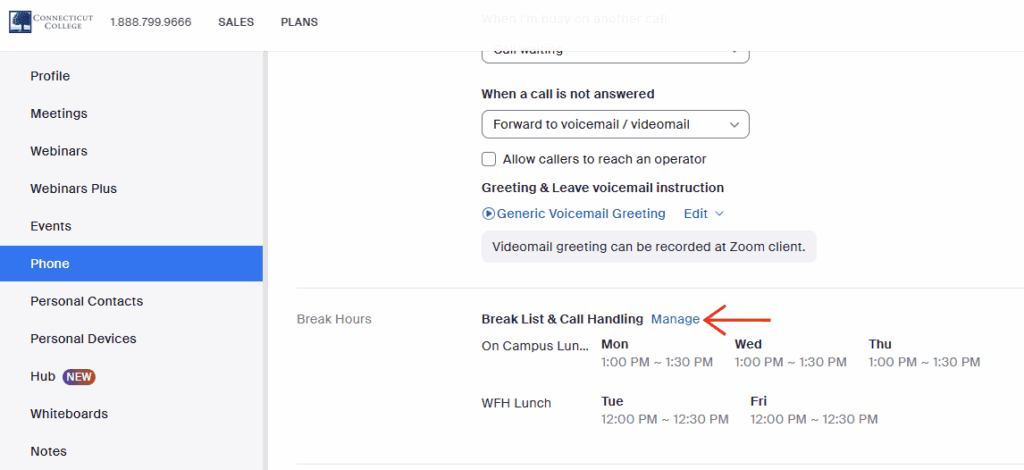
Here we have an option to Add a break. After clicking Add we will see that we have two main options.
We can add a break for every business day, which is determined by the days you set in the Business Hours screen. Give the break a name and set the hours. This break will reoccur every business day at the time you have selected.
Alternately, we can set a custom break across multiple work days by selecting Custom Hours.
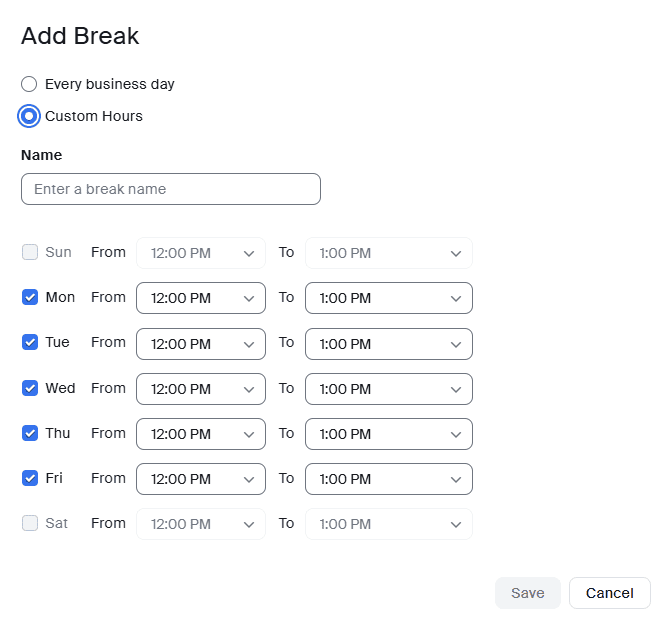
Once I have set my breaks to my liking, I make sure I give it a name and then click Save.
Now I have my breaks scheduled and I know I won’t be getting calls at those times.
You can click the Add button to add additional breaks.
